How to Strengthen Team Security with Advanced VPN Solutions
Apr 03, 2026



Building a secure home network requires careful planning and ongoing attention. Connecting a modem and router is only the first step; maintaining a safe environment calls for using dependable equipment, following precise instructions, and performing regular security checks. For someone sending design files or discussing confidential information over video conferences, a vulnerable network could put private exchanges at risk. This guide explains five essential elements that help transform any home office into a stronghold for digital protection, ensuring sensitive communications and valuable data remain safe from unwanted access.
Begin by mapping out your network. Open your device’s network map or use a simple tool to visualize every connection—from laptops to smart speakers. Spot unknown devices on this map to find unauthorized access quickly.
Next, evaluate signal strength in every corner. Weak spots can tempt you to install range extenders without securing them. Ignoring weak signals can create hidden backdoors.
You need a strong router and a quality firewall. Invest in a dual-band smart router that handles multiple devices without lag. A built-in firewall on that router filters out malicious traffic before it reaches your devices.
Don’t forget about backup. A secondary access point keeps you online if the main router fails. Place it out of sight to prevent tampering.
Change default credentials on every piece of hardware. Avoid leaving “admin” passwords in your lab, not on your home network. Use a unique, strong passphrase with a mix of letters, numbers, and symbols. A randomly generated password works best.
Enable WPA3 encryption on your router settings. WPA2 still works but hackers find new exploits daily. Regularly verify encryption settings to prevent downgrades during firmware updates.
Install reputable antivirus software on each workstation. Choose one with real-time scanning and automatic updates. Free versions might skip zero-day patches, so consider a paid plan.
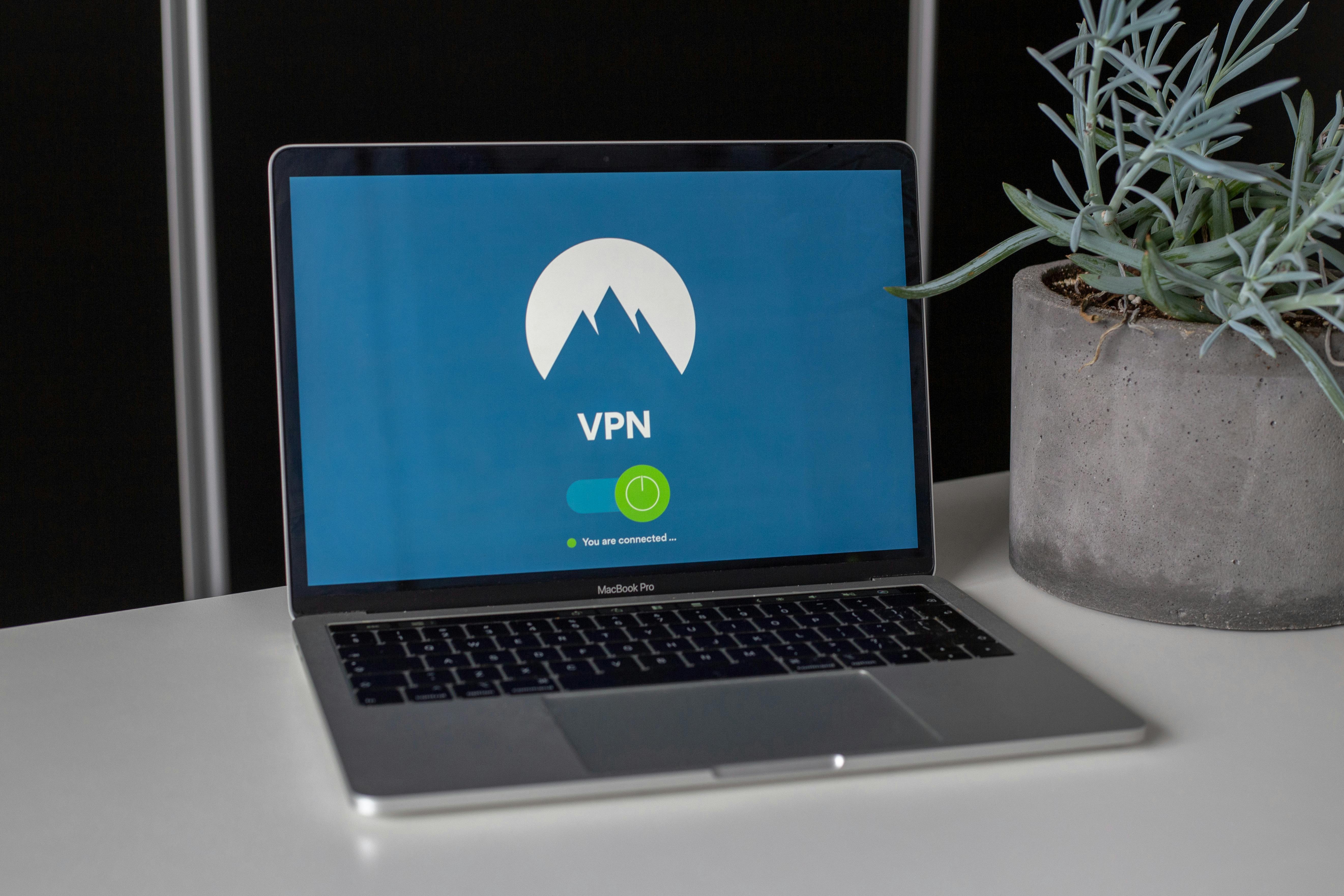
Set up a virtual private network (VPN) on your router. This method secures every device at the network level. Look for no-logs policies and strong encryption protocols when choosing a VPN service.
Schedule weekly checks on all devices. Run quick port scans to confirm no unexpected services run in the background. Remove any unauthorized ones.
Update firmware monthly. Many devices push updates automatically, but you still need to log in and confirm completion. Outdated firmware offers easy entry points for attackers.
When performance drops, analyze bandwidth usage through your router’s dashboard. A single camera streaming high-definition can hog upload capacity and cause video calls to stutter. Move that device to a guest network if needed.
If you lose connectivity, reset the modem and router in sequence—modem first, then router. This order clears cached DNS entries and often fixes IP conflicts.
Use clear steps, strong hardware, and regular checks to keep your home office network secure. Follow these essentials to prevent threats and maintain your workflow.
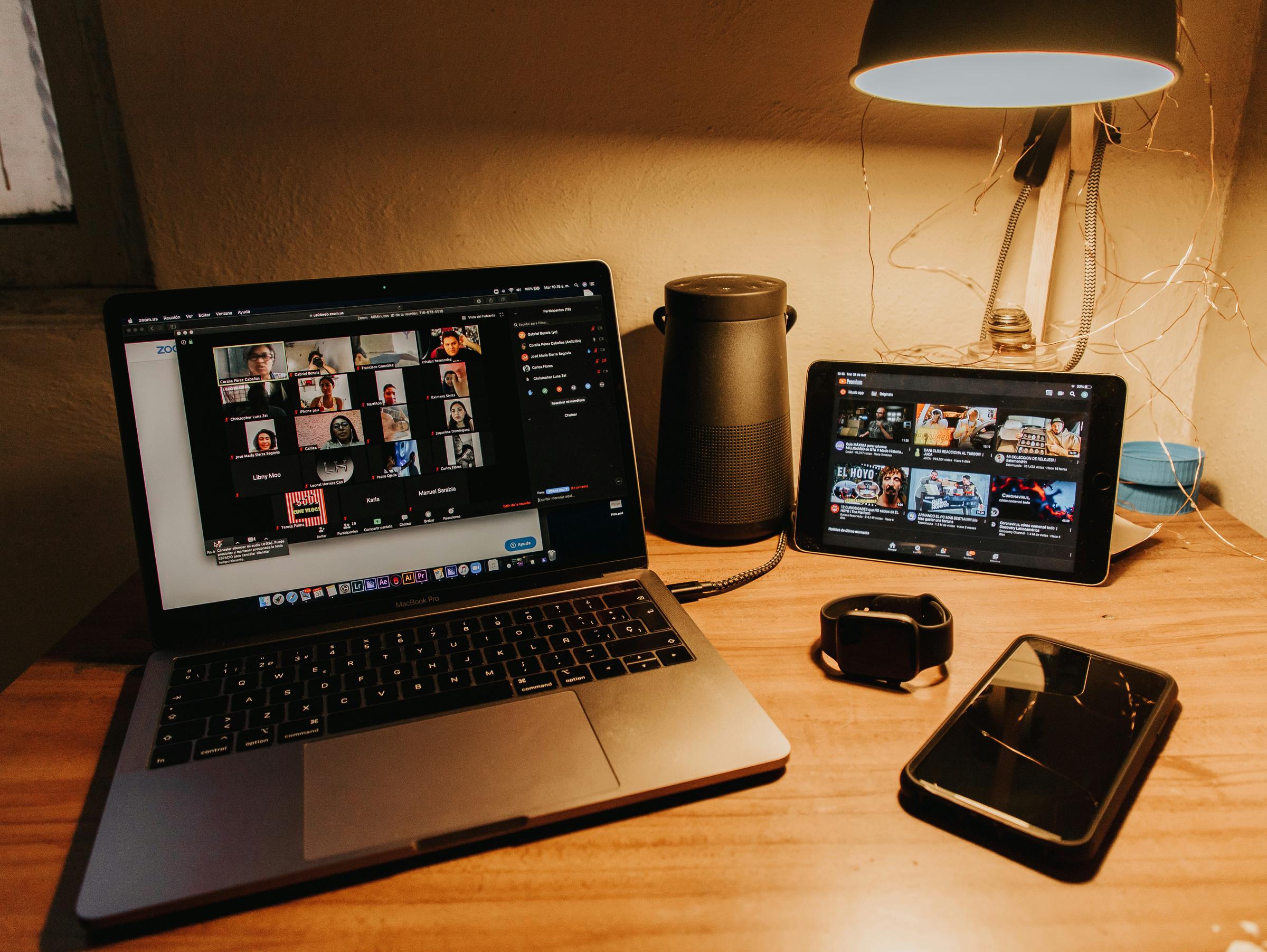
People gather in a virtual room and experience a genuine sense of togetherness, even from different locations. This feeling of presence encourages open communication and...
Mar 04, 2026

Modern smart devices bring surprising improvements to any home workspace. By integrating these gadgets into your daily routine, you can boost concentration, support...
May 07, 2026
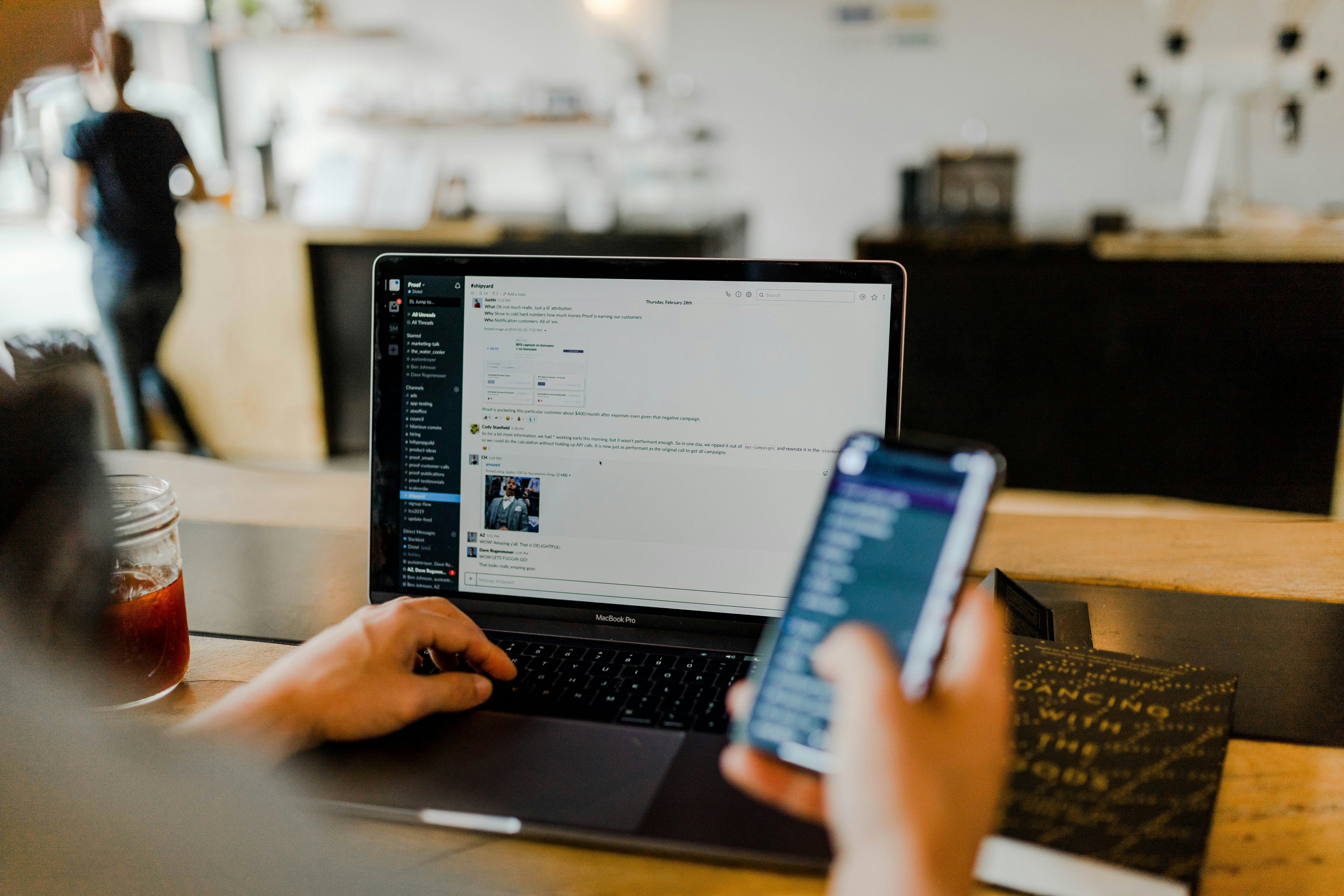
Remote teams often juggle projects across different time zones and digital platforms, which can make teamwork challenging. Using the right set of tools helps keep...
Feb 28, 2026
Handling finances across different countries often creates challenges, especially when payments and expenses occur in several currencies. Remote professionals often deal...
May 02, 2026

Creators use decentralized crowdfunding to connect directly with supporters around the world, eliminating the need for banks or intermediaries. Peer-to-peer networks...
Jun 10, 2026

Successful collaboration across different time zones relies on tools that maintain seamless and personal connections with clients. A remote-friendly customer management...
Jun 21, 2026
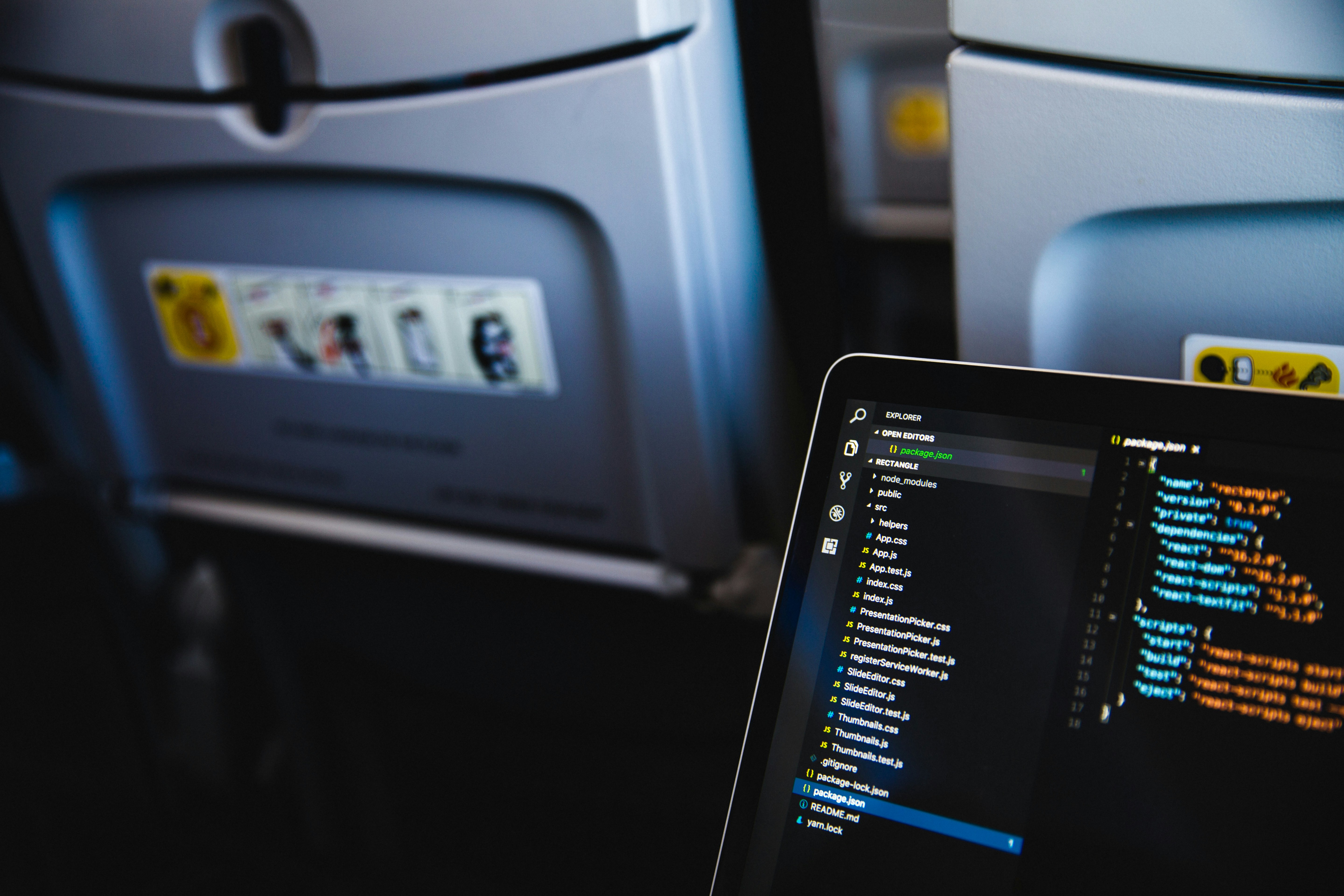
Staying organized while away from your desk often means balancing several priorities at once. You want instant updates, dependable alerts, and an easy way to track every...
May 12, 2026

Strong security measures help protect confidential data and keep trust intact when teams work from different locations. Digital identity verification solutions play a...
May 09, 2026

Carrying your work wherever you go opens up new possibilities and unique hurdles. Moving between home, bustling coffee shops, and shared spaces means constantly adapting...
Apr 11, 2026

Smart planning helps keep startup expenses in check when you operate without a dedicated office. Team members working from home or meeting in coffee shops can easily...
Mar 24, 2026

Coordinating tasks when team members work from various time zones often requires careful planning and clear communication. The right app helps everyone stay connected,...
Apr 07, 2026

Managing international payments often brings challenges, especially when you need to coordinate different currencies and timelines. Whether you are transferring funds to...
Jun 06, 2026

Teams working from different locations often struggle to keep communication smooth and projects on track. People swap between calendars, manage files, and send messages...
Jun 15, 2026
Handling expenses across international borders brings a unique set of challenges. You deal with multiple currencies, shifting time zones, and varying tax regulations....
Apr 25, 2026