How to Use Virtual Private Networks for Seamless and Secure Workflows
Jul 24, 2026



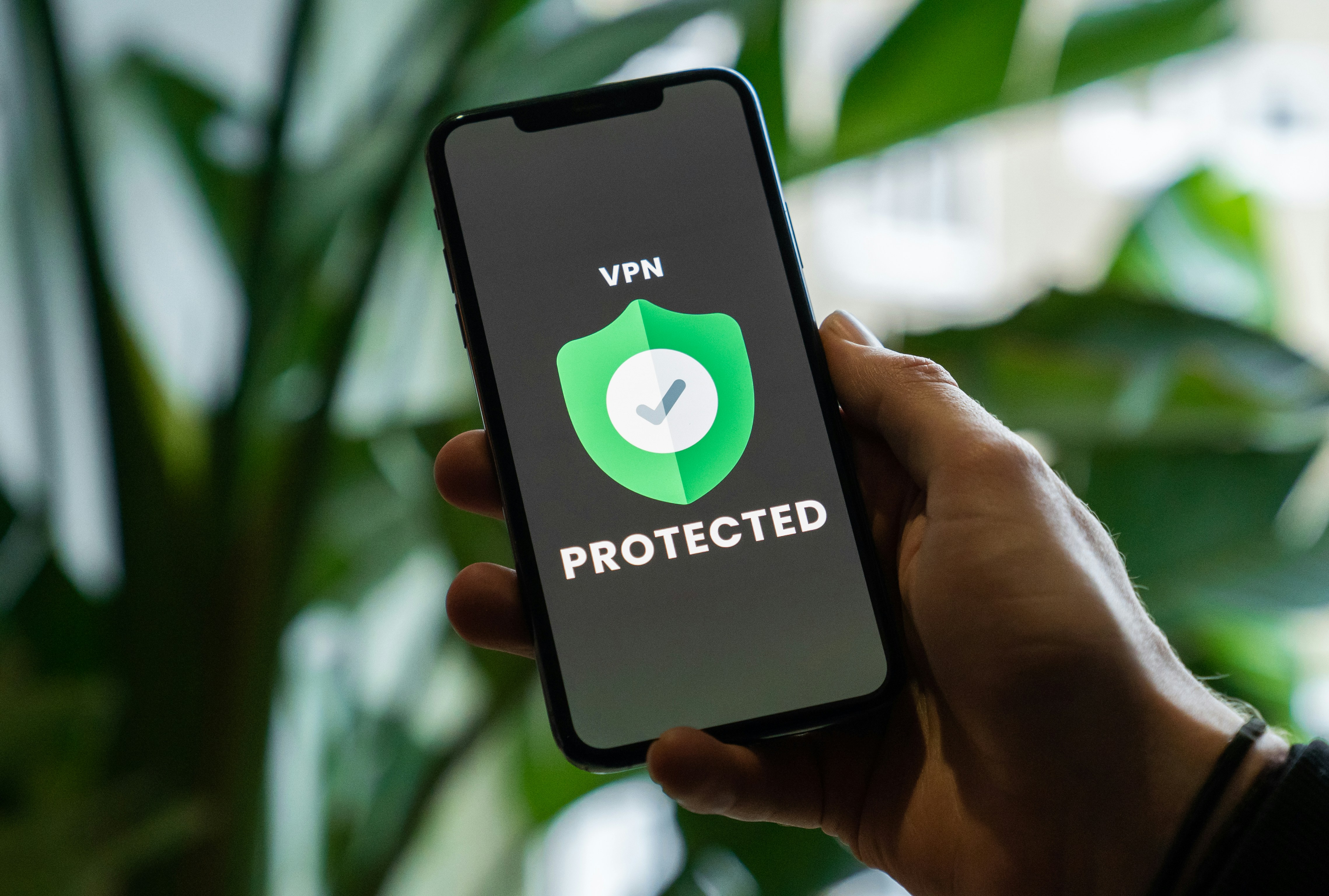
Working outside a traditional office often means relying on public Wi-Fi or home networks, which may not offer strong protection. Using advanced VPN solutions helps prevent unauthorized access by encrypting data as it moves across the internet. This extra layer of security shields your logins, files, and conversations from prying eyes. With a reliable VPN in place, you can confidently access work materials and communicate online, knowing that your information remains private and secure no matter where you connect.
By choosing the right tools and following clear steps, you can turn a patchy home network into a fortress. You’ll protect sensitive emails, financial details and project files from prying eyes. The tips below will guide you through how VPN technology works, which features to pick and how to set everything up for smooth, secure access.
A Virtual Private Network directs your internet traffic through an encrypted tunnel between your device and a remote server. This tunnel prevents eavesdroppers on public hotspots or home routers from reading data in transit. Your IP address also masks behind the VPN server’s address, adding a layer of privacy.
Encryption standards like AES-256 prevent anyone from deciphering packets even if they intercept them. Protocols such as OpenVPN, *WireGuard* and *IPsec* each provide different balances of speed and security. Choosing a protocol that fits your workflow ensures quick connections without sacrificing safety.
Keep your software updated to prevent new vulnerabilities. VPN clients often release patches to fix security holes. Plan regular maintenance windows to push these updates across all devices.
Review user access every quarter. Remove accounts for former contractors or machines that no longer need VPN. A lean access list reduces risk by limiting points of entry.
Watch for connection patterns that show anomalies. Sudden logins from foreign locations or odd times may indicate compromised credentials. Set up automatic notifications for these events.
Segment your network. Combine your VPN with internal firewalls to prevent lateral movement if a device gets breached. Only approved services should talk to sensitive servers.
Some remote sites block VPN ports. If clients can’t connect, switch to TCP port 443 to mimic regular HTTPS traffic. This method bypasses most network firewalls.
Users may experience slow load times. Encourage split tunneling to route non-essential apps outside the tunnel. You keep critical tools fast without dropping protection.
Mobile devices might disconnect when switching between Wi-Fi and cellular networks. Use VPN clients with built-in reconnection logic. They restore tunnels automatically.
If you experience DNS leaks, verify that your client forces DNS queries through the tunnel. If leaks persist, adjust your operating system’s network settings to use specific DNS servers only reachable inside the VPN.
Heavy encryption can slow data transfers. Select a protocol suitable for your needs—*WireGuard* for speed, *IPsec* for compatibility, or *OpenVPN* for broad support. Let teams decide the best option for their devices.
Define clear usage rules. For video calls or file-sync apps that generate heavy traffic, use split tunneling. Reserve VPN-only access for email, databases and web services handling sensitive data.
Set usage limits if some team members do not require unlimited bandwidth. Throttling or daily caps prevent a few power users from hogging server resources while maintaining security for critical tasks.
Distribute the load on your VPN servers. Spread connections across multiple instances so no single server becomes a bottleneck. An even distribution ensures consistent speeds for everyone.
Use a reliable logging and analytics tool. Seeing session times, data consumption and device types helps you identify performance issues early.
Regularly check performance data and adjust resource allocations accordingly. If a server approaches capacity, spin up additional instances or move users to less busy locations.
Following these steps secures each device without slowing down your network. A properly configured *VPN* safeguards data and supports team productivity from any location.

Successful collaboration across different time zones relies on tools that maintain seamless and personal connections with clients. A remote-friendly customer management...
Jun 21, 2026

Handling finances across different countries often creates challenges, especially when payments and expenses occur in several currencies. Remote professionals often deal...
May 02, 2026

Teams working from different locations often struggle to keep communication smooth and projects on track. People swap between calendars, manage files, and send messages...
Jun 15, 2026

Creators use decentralized crowdfunding to connect directly with supporters around the world, eliminating the need for banks or intermediaries. Peer-to-peer networks...
Jun 10, 2026

Many people now rely on getting work done while they travel from one place to another. Mobile devices make it simple to stay productive outside of a typical office,...
Jul 29, 2026

Coordinating tasks when team members work from various time zones often requires careful planning and clear communication. The right app helps everyone stay connected,...
Apr 07, 2026

Modern smart devices bring surprising improvements to any home workspace. By integrating these gadgets into your daily routine, you can boost concentration, support...
May 07, 2026

Building a sense of connection among team members, no matter where they work from, plays a vital role in creating a supportive workplace. A well-designed program begins...
May 22, 2026

Managing international payments often brings challenges, especially when you need to coordinate different currencies and timelines. Whether you are transferring funds to...
Jun 06, 2026

Building a secure financial future often resembles assembling a complex puzzle, particularly for those whose careers revolve around technology and digital tools....
Jul 21, 2026
Staying organized while away from your desk often means balancing several priorities at once. You want instant updates, dependable alerts, and an easy way to track every...
May 12, 2026

Carrying your work wherever you go opens up new possibilities and unique hurdles. Moving between home, bustling coffee shops, and shared spaces means constantly adapting...
Apr 11, 2026

Coordinating suppliers from different continents tests a team’s ability to work together seamlessly. Offices that operate across multiple time zones benefit greatly from...
Apr 22, 2026

Managing billable hours, preparing precise invoices, and following up on overdue payments often consume valuable time that could go toward creative projects. Manual...
Apr 29, 2026